How Do I Show the Inside of My Business on Google Maps?
This guide explains how to show the interior of your business on Google Maps, how to activate the See Inside feature, and what you need to get it.

Use the buttons below to get an AI summary of this article.
How Do I Show the Inside of My Business on Google Maps?
Showing the inside of your business on Google Maps lets customers explore your venue before they visit. In this guide, you will find out how to activate the See Inside feature and the steps you need to take.
1) What Is the See Inside Feature on Google Maps?
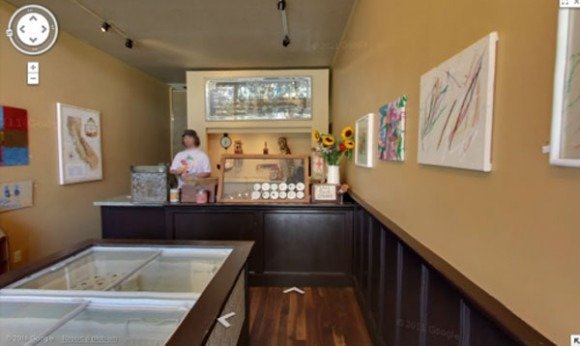
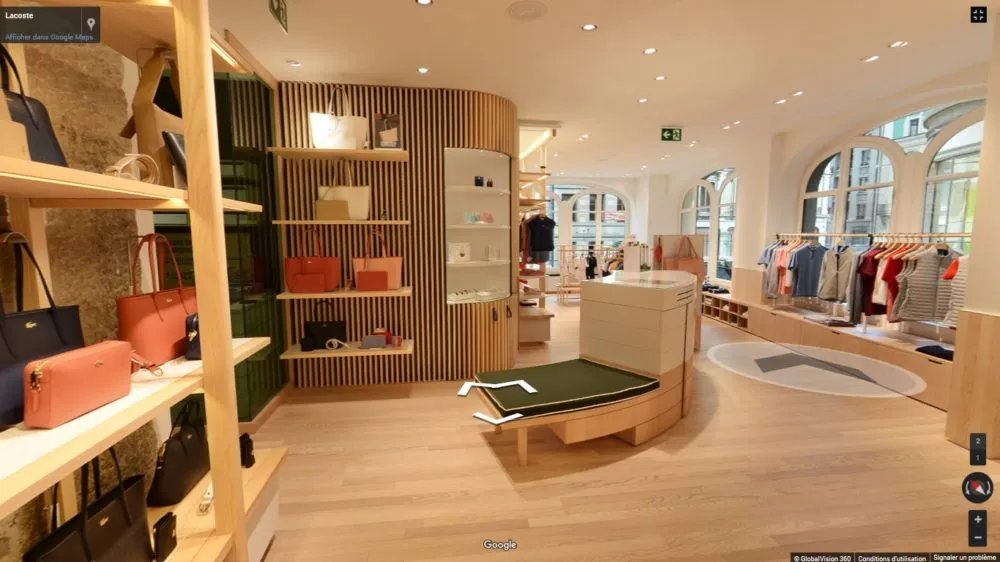
See Inside is a special feature that appears on business profiles on Google Maps. It lets users explore the interior of your business in 360 degrees.
What the feature offers:
- A See Inside button appears on the business profile
- Users can explore the venue with a mouse or a finger
- They can move between different areas
- It works smoothly on mobile and desktop
This feature is Google Street View technology applied to business interiors. Just as on the street, 360-degree navigation becomes possible inside the business too.
2) Benefits of the See Inside Feature
Showing the inside of your business on Google Maps brings real advantages, and Google's own data backs them up.
For visibility:
- Ranking higher in search results
- A more eye-catching profile than competitors
- Standing out in map searches
For customer trust:
- Customers can see the venue in advance
- The gap between expectation and reality closes
- Your business comes across as professional and transparent
According to Google data, businesses with the See Inside feature get twice as much interest. And 41 percent of map searches end in a physical visit.
3) What You Need for See Inside
There are a few prerequisites for activating the See Inside feature.
Basic requirements:
- A Google Business Profile (formerly Google My Business)
- A verified business profile
- A professional 360-degree shoot
- A Google Street View Trusted photographer
Checking your profile:
- Search for your business on Google Maps
- If the profile shows up, check its verification status
- If there is no profile, create a Google Business Profile
- Follow Google's instructions to verify it
Once your business profile is ready, you can move on to the 360-degree shoot.
4) The 360-Degree Shooting Process
Showing the inside of your business requires a professional 360-degree shoot. The shoot has to meet Google's quality standards.
Stages of the shoot:
Planning:
- You get in touch with a photographer
- The size of the venue and the scope of the shoot are defined
- A suitable date and time are scheduled
Preparation:
- The venue is cleaned and tidied
- The lighting is checked
- A time without customers is chosen
Shooting:
- A professional 360-degree camera is used
- A panoramic photo is taken from each point
- HDR technique is used to balance the lighting
Processing and upload:
- The images are stitched and edited
- They are uploaded to Google
- They are matched with the business profile
5) Choosing a Google Street View Trusted Photographer
To guarantee the quality of business tours, Google runs a Trusted photographer program. These photographers meet specific standards.
Benefits of a Trusted photographer:
- Quality approved by Google
- Fast approval and publishing
- Support with technical issues
- Professional equipment and experience
What to look for when choosing a photographer:
- Google Trusted certification
- Portfolio quality
- Industry experience
- References
G360 holds Google Street View Trusted partner status, and we have published more than 1,600 businesses on Google Maps.
6) What Happens After the Shoot
Once the shoot is complete, the images need to be processed and uploaded to Google.
Processing steps:
- The raw images are stitched together
- The tripod and unwanted objects are removed
- Color and lighting corrections are made
- Transitions between scenes are set up
Uploading to Google:
- The tour is uploaded to Google Street View
- It is matched with the business profile
- The location is verified
Publishing:
- It is usually approved within 24–72 hours
- The See Inside button becomes active
- The 360-degree tour appears on the profile
Checks after publishing:
- Search for your business on Google Maps
- Check that the See Inside button is visible
- Make sure the tour works properly
7) Common Mistakes and How to Fix Them
There are a few mistakes to avoid when activating an indoor tour for your business.
Profile issues:
- Mistake: The business profile is not verified
- Fix: Complete Google's verification process
Image quality:
- Mistake: Low-resolution or blurry images
- Fix: Work with a professional Trusted photographer
Timing:
- Mistake: Shooting during busy hours
- Fix: Choose hours when there are no customers
Venue preparation:
- Mistake: The venue looks messy or dirty
- Fix: Clean and tidy thoroughly before the shoot
Location matching:
- Mistake: The tour is linked to the wrong business
- Fix: Check the location details during upload
8) Conclusion
Showing the inside of your business on Google Maps is an effective way to increase digital visibility and earn customer trust. With the See Inside feature, you can stand out from competitors and introduce your venue to potential customers before they arrive.
The process in summary:
- Create and verify your Google Business Profile
- Get in touch with a Trusted photographer
- Prepare the venue for the shoot
- Get a professional 360-degree shoot
- Wait for the tour to be published on Google
To make your business stand out on Google Maps, you can get in touch with G360. Browse examples from different industries in our portfolio to find the right solution for your business.
You can browse our completed clinic virtual tours in our portfolio.
From our archive: real project data
Here is the breakdown of our businesses with the See Inside feature active:
- 1,600+ businesses can be explored from the inside on Google Maps
- Provinces with the most tours: Ankara (275), İstanbul (128), Muğla (128), Trabzon (76), Gaziantep (86)
- A total of 1,077,330 Google reviews
- An average rating of 4.28
Each one is linked to a Google Business Profile and can be opened directly from search results.
Frequently Asked Questions
You can activate the See Inside feature by getting a 360-degree shoot from a Google Street View Trusted photographer.
It is a feature shown on a business profile on Google Maps that lets users explore the interior in 360 degrees.
Publishing on Google is free, but you pay the photographer for the professional 360-degree shoot.
Regular photos are added to the gallery, while 360-degree photos offer interactive navigation through the See Inside feature.
It is technically possible, but a Trusted photographer is preferred for quality and a smooth approval process.
After the shoot, the See Inside feature usually becomes active within 24–72 hours.
First create and verify a Google Business Profile, then you can add an indoor tour.
It can be viewed through Google Maps on desktop, in the mobile app, and in a browser.
Yes. When the venue changes, it can be updated with a new shoot.
Yes. Each location needs its own shoot, matched with its own Google Business Profile.
A Professional Virtual Tour for Your Business
Give your customers an unforgettable experience with a 360° virtual tour.
Get a Free Quote