How to Embed a Virtual Tour on Your Website and Publish It
Your tour is ready, but where will you put it? Embedding it on your website, publishing it on Google, QR codes and social media: a step-by-step publishing guide.

Use the buttons below to get an AI summary of this article.
How to Embed a Virtual Tour on Your Website and Publish It
The shoot is done and the tour is ready. Now the real question: where will this tour live?
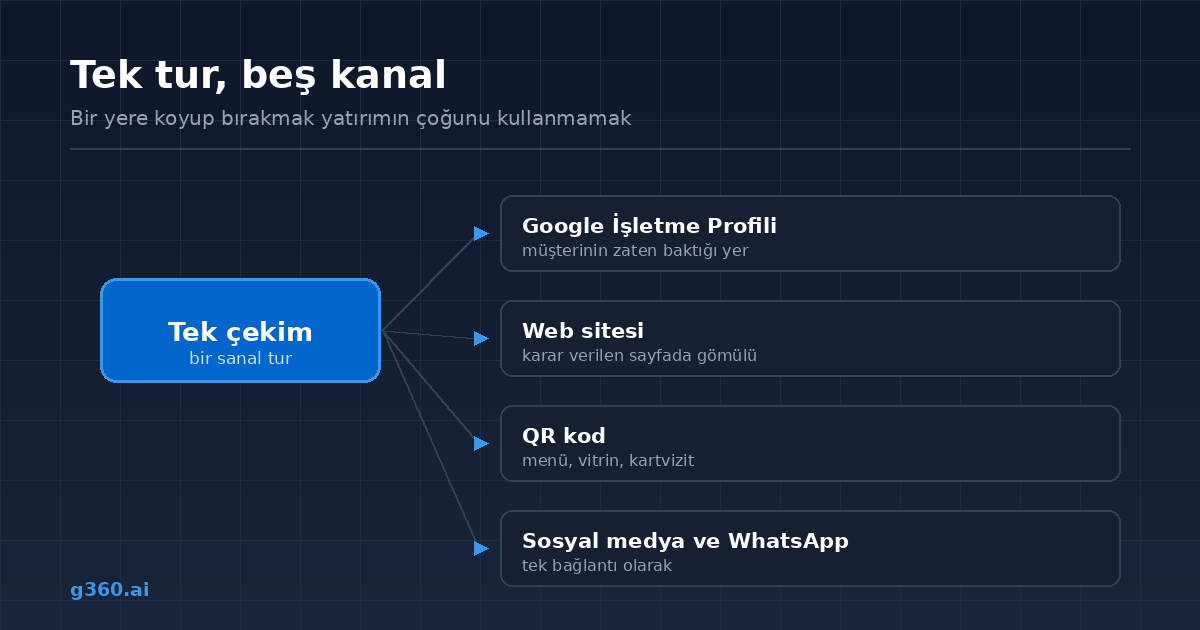
Most businesses put the tour in one place and leave it there. Yet the same tour can work on five different channels at once, and each one reaches a different customer.
1. Google Maps and Business Profile
This is the most important channel, because it's where customers are already looking for you.
After a shoot by a Street View Trusted certified photographer, the tour is connected to your Google Business Profile. When a customer searches for you on Google, a "See Inside" option appears next to the photos on your business card.
The advantage here: you don't have to share the tour or get anyone to click on it. It's already right where the customer is looking.
The 1,600+ tours in our archive are published this way, across 55+ provinces and 200+ districts. These businesses have a total of 1,077,330 Google reviews, which means the tours sit inside profiles with heavy search traffic.
We explain the process in our showing your business interior on Google Maps guide.
2. Embedding it on your website
The embed code you're given is a single-line iframe tag. You paste it wherever you want the tour to appear on your site.
The code is structured roughly like this:
- A frame tag
- The tour's address inside it
- Width, height and full-screen permission
Most website platforms have a place to paste it: the "Custom HTML" block in WordPress, the "Embed" element in Wix, the "Embed" element in Webflow, and the product or page description in Shopify.
No separate hosting is needed. The tour is hosted on our side; your site only displays the frame. It puts no load on your server.
How to keep your page speed intact
The most common mistake when embedding is placing the tour at the very top of the page and having it load right away. That slows down the page load.
The right way:
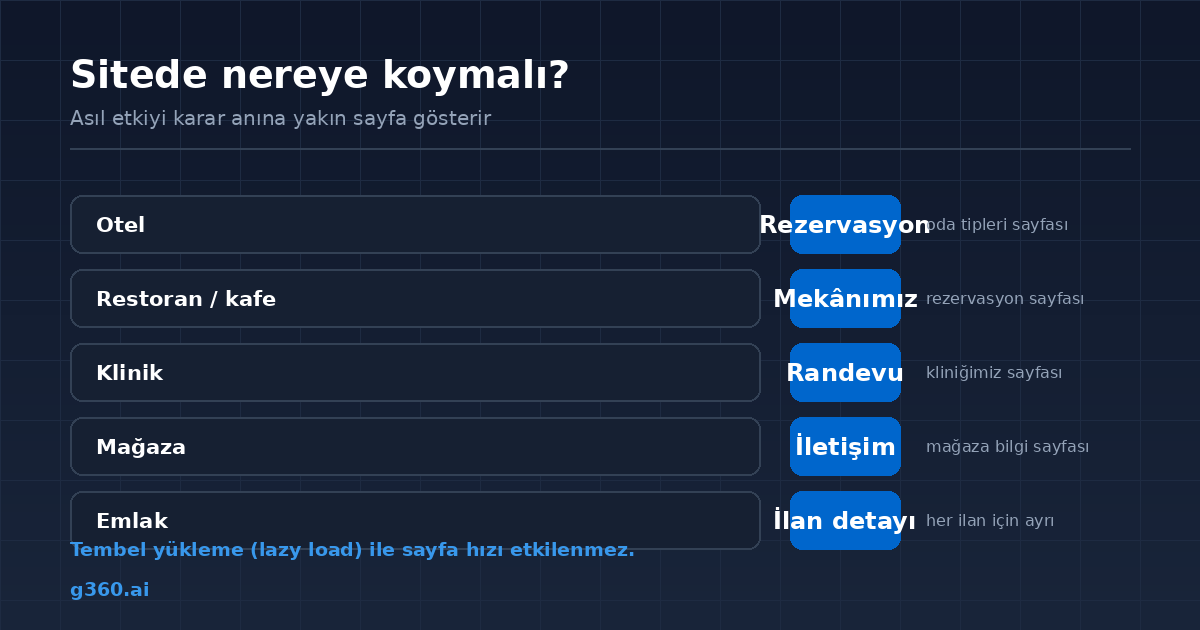
- Add lazy loading (
loading="lazy") to the frame, so the tour doesn't load until the user reaches that section - Place the tour a little further down, not on the first screen of the page
- Set a fixed height, so the content doesn't jump around while the page loads
- Reduce the height on mobile
With these four steps in place, the tour won't lower your page speed score.
Where should it go on your website?
The right page depends on the business, but the general rule is: on the page where the decision is made.
- Hotel → room types and booking page
- Restaurant → "Our venue" and reservation page
- Clinic → "Our clinic" and appointment page
- Store → store information page and contact page
- Real estate → listing detail page
Putting it on the home page also makes sense, but the real impact comes on a page close to the moment of decision.
3. QR code
This is the most practical way to link your physical space to the virtual tour. Where to use it:
- On the menu
- On the shop window or door glass
- On business cards and brochures
- At a trade fair stand
- On vehicle wraps
A QR code in the window lets people tour the venue even outside opening hours.
4. Social media and messaging
Since the tour link is a single line, it fits anywhere:
- Instagram bio
- WhatsApp Business messages and automatic replies
- Email signature
- Google Business Profile posts
Sending a customer the tour link during an appointment or booking conversation means they won't feel like a stranger when they arrive.
5. Ads and campaigns
The virtual tour link can also be used as an ad landing page. Especially in industries where the quality of the venue is the main selling point, users who see the tour convert at a higher rate than with text and photos.
Publishing checklist
Once the tour is delivered, complete these steps:
- Confirm that it appears on your Google Business Profile
- Embed it on your website and test it on mobile
- Add the QR code to your printed materials
- Put the link in your Instagram bio
- Add it to your WhatsApp automatic reply
- Add it to your email signature
All six are one-time tasks, and they keep working for the life of the tour.
In short
A virtual tour is a one-time production but a multichannel asset. Putting it in one place and leaving it there means leaving most of the investment unused.
To add menu and booking links inside the tour, see our hotspots and info cards guide.
Frequently Asked Questions
Paste the embed (iframe) code you're given wherever you want the tour to appear on your site. The code is a single line and can be added as an HTML block on most website platforms.
No. The tour is hosted on our side; your site only displays the embedded frame. This puts no load on your site's server.
Not if it's embedded correctly. When the tour frame is set to lazy load, it loads when the user reaches that section, not when the page opens.
Yes. Both platforms have an HTML or embed block, and you paste the code there. The same method works on Shopify, Webflow and similar platforms.
Your Google Business Profile has to be verified. After a shoot by a Street View Trusted certified photographer, the tour is connected to your profile and appears on Maps as See Inside.
Yes. A QR code placed on a menu, sign, business card or shop window opens the tour directly. It's the most practical way to link your physical space to the virtual tour.
Yes. It can be used as a single link in your Instagram bio, a WhatsApp message or your email signature.
Yes. The embedded frame has a full-screen button, and the direct tour link can also be opened full screen in a separate tab.
A Professional Virtual Tour for Your Business
Give your customers an unforgettable experience with a 360° virtual tour.
Get a Free Quote