Google Business Profile Photos: Add, Remove and Pick a Cover
A plain-language guide to adding photos to your Google Maps listing, removing an image you do not want and choosing the cover photo for your business.
Use the buttons below to get an AI summary of this article.
Google Business Profile Photos: Add, Remove and Pick a Cover
You manage the photos on your Google Business Profile by signing in with the account that manages the profile and opening its photos section. From there you can add and delete the photos you uploaded yourself, and set your cover photo. Photos uploaded by customers, however, cannot be deleted directly; you report an image you find inappropriate to Google, and Google decides whether it is removed.
This distinction may look like a small detail, but it largely shapes how your profile looks to customers. In this guide we explain where photos come from, how to add and remove them, why your cover choice may not always show up the way you expect, and the practical lessons we have learned at G360 working with businesses since 2018. Button names in Google's interface change from time to time, so we describe the steps in general terms.
Where do the photos on your profile come from?
Not every photo on a business profile comes from the same place, and you do not have the same control over all of them. It helps to separate these sources:
- Owner photos: Images added by the person or team managing the profile. You can change or delete them at any time.
- Customer photos: Images visitors add when leaving a review or directly to the profile. These are tied to the uploader's account.
- Street-level imagery and virtual tours: 360-degree imagery linked to your profile can also appear in its own spot among the photos.
Customer photos are often helpful because they convey a real visit. Still, dark, blurry, outdated or completely unrelated images sometimes end up on a profile. The area you control directly is your own uploads, so the healthiest way to balance the overall impression is to add current, good-quality photos regularly.
How do you add photos to a Google Business Profile?
Adding photos is done directly from Google Search results or the Google Maps app. The general flow looks like this:
- Make sure you are signed in with the Google account that manages the profile.
- Search for your business name on Google, or open your profile in the Maps app and go to the management options.
- Use the add photo option to choose an image from your computer or phone.
- If the interface offers it, mark the photo as a cover, logo or general photo.
- It may take some time for the photo to appear, because Google may review uploaded content against its own policies.
Make sure your images are sharp, bright and show the place as it really is. Images with text or large logos on top, heavily filtered shots and stock images taken from elsewhere can both undermine customer trust and run into Google's content rules.
Which photos really describe your business?
Someone looking at your profile is really asking one question: “What will I see when I walk in?” A photo set that answers it usually includes:
- The exterior and entrance, so customers recognise the place when they arrive.
- The main space: dining room, lobby, shop floor or waiting area.
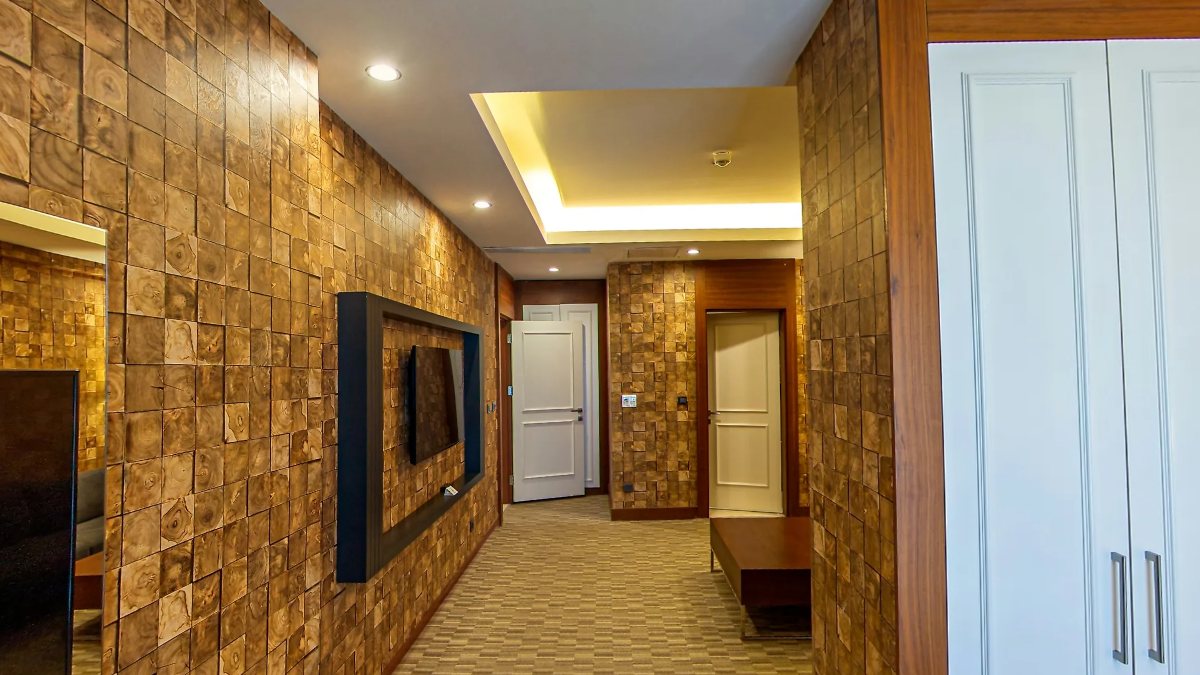
- Shots that show moving from one area to the next: corridors, doors, openings onto a hall or terrace.
- Details such as products, the menu, rooms or service areas.
- Your team and workspace, with people's permission of course.
Transition shots are often skipped, yet they show the size and layout of a place most clearly. In the 101-scene tour we prepared for Radisson Blu Hotel, Diyarbakir in Diyarbakır, frames such as the corridor running from a room's entrance to the doors inside show guests at a glance how the room is laid out. We cover the ways to show your interior on Maps in detail in our guide to showing the inside of your business on Google Maps.
How do you remove a photo you uploaded yourself?
Deleting photos you added as the owner is fairly simple:
- Sign in with the account that manages the profile and open the photos section.
- Find the tab showing owner photos; in the interface these are usually listed separately from customer photos.
- Open the photo you want to remove and tap the delete or trash icon.
- Confirm in the dialog that appears.
It can take a while for a deleted photo to disappear completely from Search and Maps. If several people or an agency manage your profile, make sure the account you are using has permission for this action. Before deleting, we also suggest considering whether you can replace the image with a more current one; an empty profile tells customers even less than an old photo.
What can you do about an inappropriate customer photo?
As the business owner you cannot delete customer photos directly. What you can do is open the photo and use the reporting option (often a flag icon or a “Report a problem” link) to send Google your reason. Reporting options usually include situations such as:
- The photo is unrelated to your business, for example it shows another venue.
- It contains inappropriate, offensive or misleading content.
- It includes personal information or identifiable people.
- It infringes intellectual property or copyright.
Google evaluates your request against its own policies. Not every report is accepted, and there is no way to determine the outcome. If you know the customer who uploaded the photo, asking them to remove it from their own account is another option. Be cautious of calls from anyone who promises that a photo will definitely be removed; only Google makes that decision. The lasting solution is usually to reduce the impact of the unwanted image with current, good-quality photos.
How do you choose a cover photo, and why might Google show a different one?
Your cover photo works like a shop window for your profile. You can set an image as the cover when uploading it or by choosing from your existing photos; the logo is managed as a separate field. It is worth knowing, though, that Google may highlight a different photo first depending on the user's search and its own assessment. So there is no certainty that your chosen cover will appear first in every search.
Even so, a carefully chosen cover strengthens the first impression. We recommend a frame that is:
- Landscape, bright and wide-angle.
- Able to introduce your business at a glance: the exterior, the main hall or the most characteristic space.
- Free of text, collages or frames.
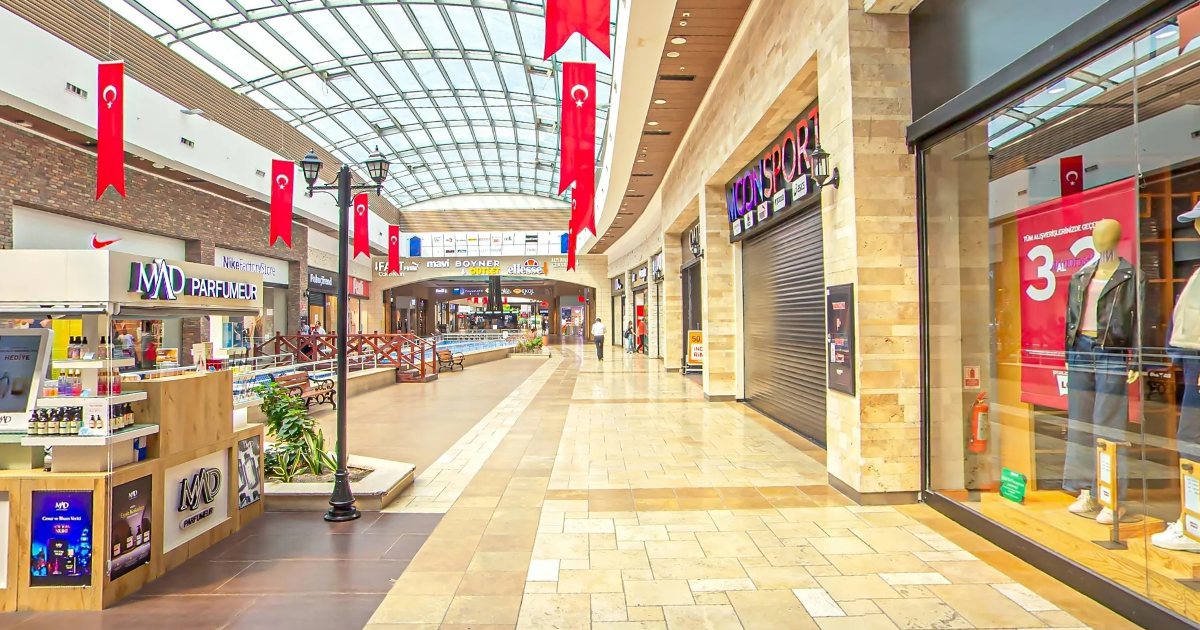
For example, the Highway Outlet Avm tour in Bolu has 11 scenes, and its glass-roofed shopping corridor is the kind of image that captures the atmosphere in a single frame. The Arabica Coffee House Genel Müdürlüğü / Arabica Coffee House Beysukent tour in Ankara has 10 scenes, and the Kaburgacı Yaşar Usta tour in Adana has 27. In these examples, visitors to the profile do not have to settle for the cover; they can explore the inside.
How is a virtual tour different from the photos on your profile?
Photos show individual moments of a place; a virtual tour connects those moments. A business owner can, at most, take individual 360 photos with a phone or a single 360 camera. These are standalone images and they are not a virtual tour. A virtual tour with connected scenes, where people move from area to area using navigation arrows, is shot and prepared by G360.
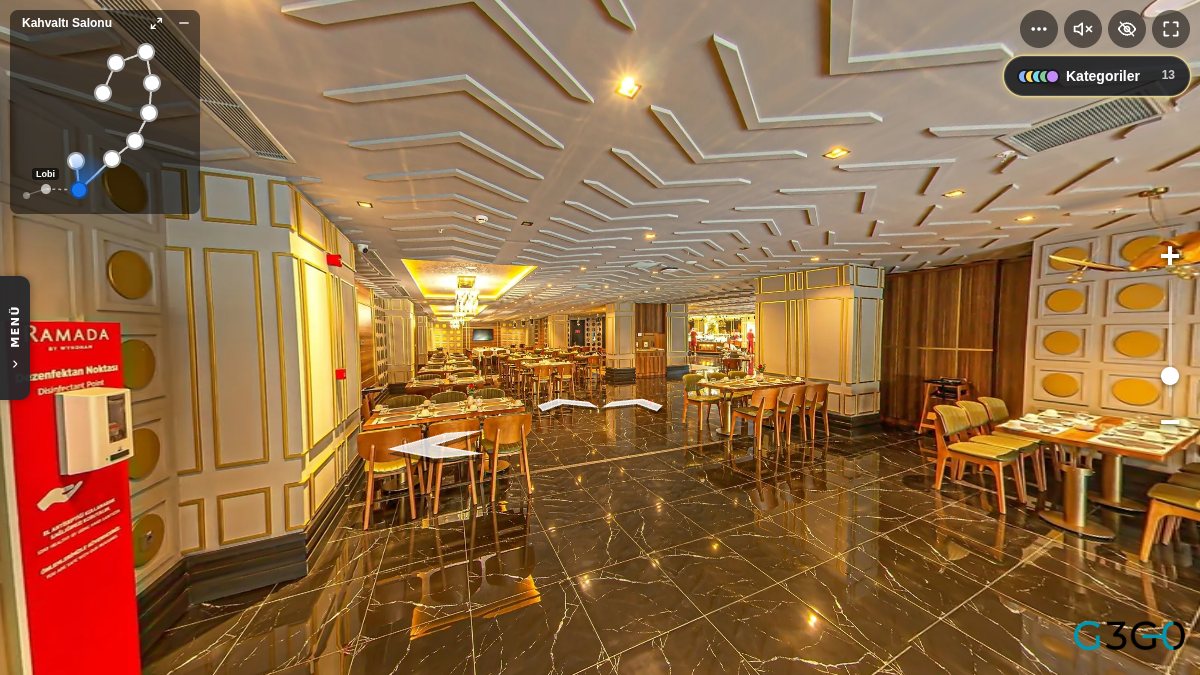
Tours shot by G360 are published on the business's Google Maps profile, and each tour also has its own page on g360.ai. The Ramada By Wyndham Erzurum tour in Erzurum has 77 scenes; visitors can follow the arrows in the player from the restaurant to other areas and see where they are on the scene map in the corner. The Ramada By Wyndham Karapinar Konya tour in Konya works the same way across 49 scenes. We explain how such tours work on Maps in our article on Google Street View business tours, and the difference between individual photos and a professional shoot in our guide comparing software with professional shooting.
The Google Business Profile is free. At G360, payment for a virtual tour is one-time; there is no monthly fee.
What should you keep in mind to keep your profile tidy?
Photo management is not a one-off task but part of looking after your profile. These habits make it easier:
- Review your photos at regular intervals and replace images that no longer reflect the place as it is today.
- When the decor, menu or layout changes, plan to update your photos and, if you have one, your virtual tour.
- If you have several branches, set up a similar photo structure for each; our virtual tour guide for multi-branch businesses can help.
- If your virtual tour does not show on your profile, you can find possible causes in our article on why a virtual tour may not appear on Google Maps.
If you would like to see examples from different cities and sectors, take a look at our tours listed city by city and our portfolio with examples by sector. At G360 we have shot more than 1600 tours so far.
Let's tidy up your profile together
Once your photos are in order, if you would like to show customers the inside of your business in a way they can walk through, you can reach us through our contact page to request a site visit and a quote. For pricing, simply visit our pricing page.
Frequently Asked Questions
Sign in with the account that manages the profile and open the owner photos in the photos section. Open the image you want to remove and tap the delete icon; it may take a while to disappear everywhere.
No. Customer photos belong to the account of the person who uploaded them, so the business owner cannot delete them directly. You can report an inappropriate image to Google with a reason, and Google decides whether it comes down.
If you know the customer who uploaded it, you can politely ask them to remove it from their own account. Otherwise, the most reliable approach is to add current, good-quality photos so that image carries less weight.
Google may highlight a different image depending on the search and its own assessment. That is why the rest of your photos should also be bright, sharp and up to date, not just the cover.
No. Images taken with a phone or a single 360 camera are standalone photos. A virtual tour with connected scenes that people can walk through is shot and prepared by G360.
The tour is published on your Google Maps business profile. Each tour also has its own page on g360.ai, which you can share with customers directly.
No. At G360, payment for a virtual tour is one-time, and the Google Business Profile itself is free. You can find current pricing on our pricing page.
A virtual tour for your business
We photograph your hotel, restaurant, shop or clinic in 360° and add the tour to Google Maps and your website.
Get a quote